How much data the connection can receive during the test.
Digital Navigator / Software for Katalyst Spark OpenWrt
SPARK
SOFTWARE.
Understand the connection.
Choose the position.
Manage the traffic.
Bring measurement and control to your Katalyst Spark 500A. Speedtest checks connection performance, Signal Monitor helps you compare operating positions, and LiveStream Optimizer manages queues for more responsive live traffic.
SPEEDTEST · SIGNAL MONITOR · LIVESTREAM OPTIMIZER
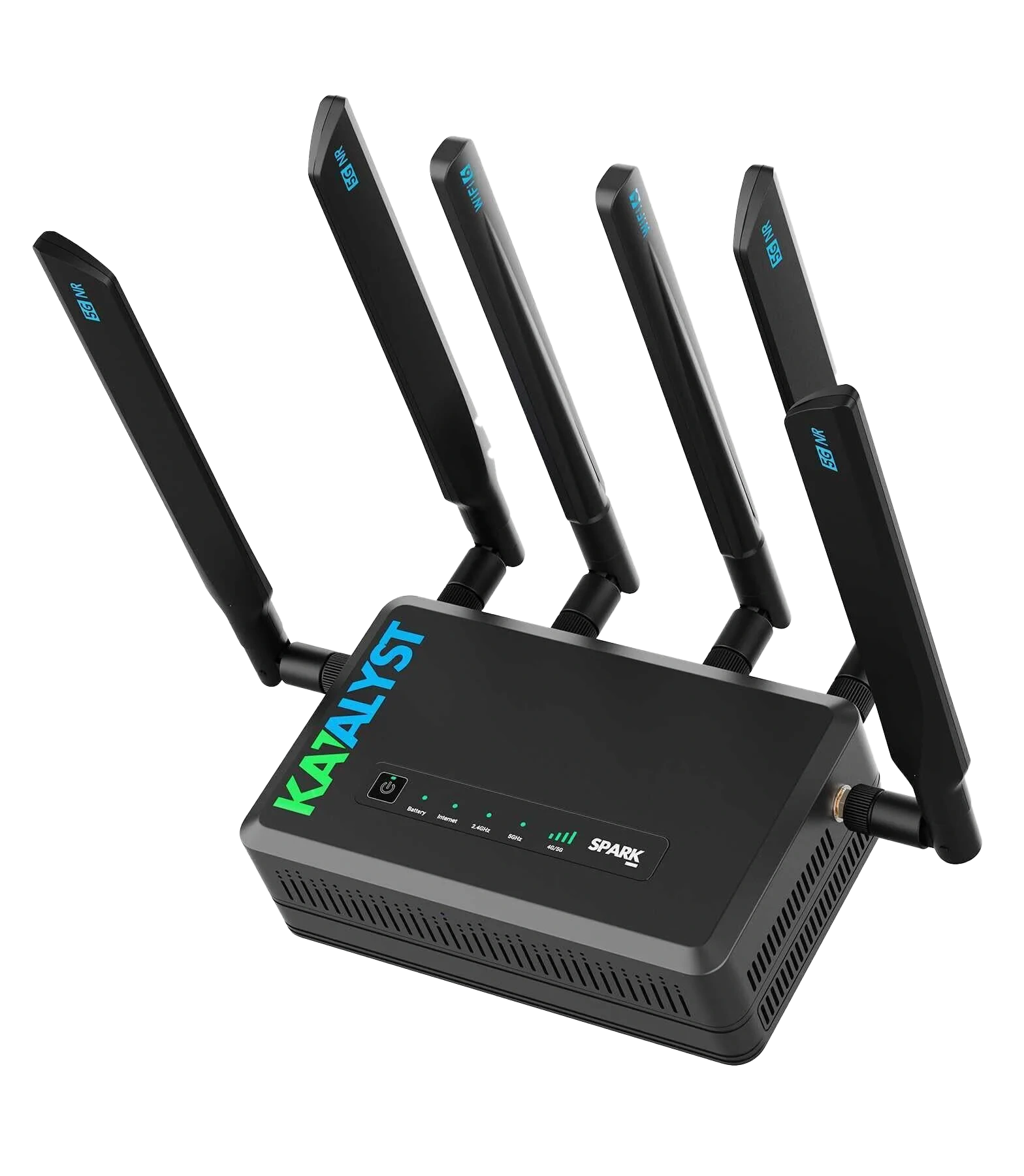
DigiNav tools for the Spark’s OpenWrt-based platform.
01 / Know what the link can do
Speedtest.
At the radio.
Ookla Speedtest CLI integration for Spark
Check the Spark’s internet connection directly, without making your laptop’s Wi-Fi link part of the test path.
Download and upload results tell you about available capacity. Latency measurements help you understand responsiveness, including what happens while the connection is carrying traffic.
Use a test as a baseline at a new location, repeat it after a placement change, or compare conditions before an important live session.
Speedtest CLI is an Ookla product. DigiNav helps install and integrate it on compatible Spark systems; Signal Monitor and LiveStream Optimizer are DigiNav products.
Ask about Speedtest on your Spark →What you learn from a test
The capacity available to send video, files, and other upstream traffic.
How quickly traffic makes the round trip—and how delay changes under load.
A result for that location and moment. Repeat tests when placement or network conditions change.
02 / Better placement starts with better information
Signal Monitor.
Find your better position.
Signal bars are a starting point. Signal Monitor gives you more information to compare one operating position with another.
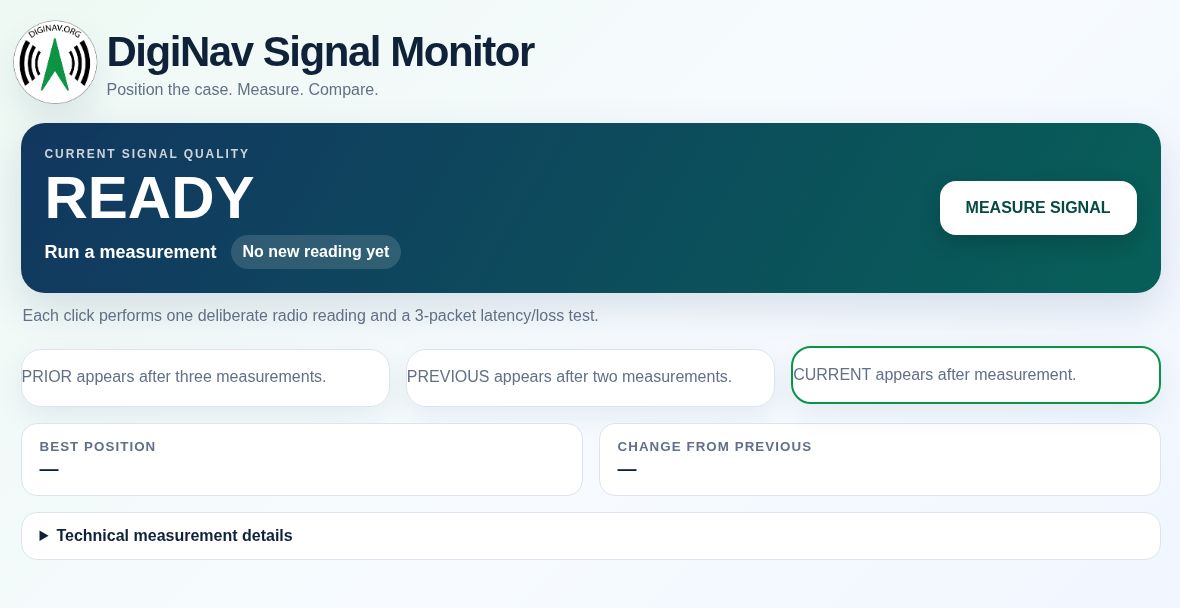
Take a deliberate measurement, move the case or change antenna orientation, and measure again. The browser interface keeps PRIOR, PREVIOUS, and CURRENT readings together so you can see whether the change helped.
Look beyond strength.
Review available radio measurements alongside latency and packet loss. The overall score combines those measurements into an eight-level quality rating for easier position comparison.
Make placement deliberate.
Use it at an event site, a temporary office, a job site, or another deployment where a window, room, or case position can affect cellular performance.
The interface highlights the best measured position and the change from the previous result. Available radio metrics depend on what the modem reports.
1UNUSABLE
2POOR
3MARGINAL
4FAIR
5GOOD
6VERY GOOD
7EXCELLENT
8EXCEPTIONAL
Position first, then confirm it. Repeat the best result before relying on the location for production traffic; a measurement describes the conditions at the time of the test.
Discuss Signal Monitor for your Spark →03 / Responsiveness while the link is busy
LiveStream Optimizer.
Give live traffic room.
DigiNav software / Cellular queue control
A fast connection can still feel slow when its queues fill. That extra delay can affect a live stream, video call, or other interactive session.
LiveStream Optimizer calibrates the connection, evaluates upload and download separately, and applies CAKE queue management where shaping is needed. It saves a profile so you can start broadcast mode again without repeating the full calibration every time.
Balance delay and capacity.
The calibration checks performance under load and evaluates each direction independently. A direction that meets the latency target can remain in passthrough mode, while a direction that needs control receives a shaping profile.
Put the operator in control.
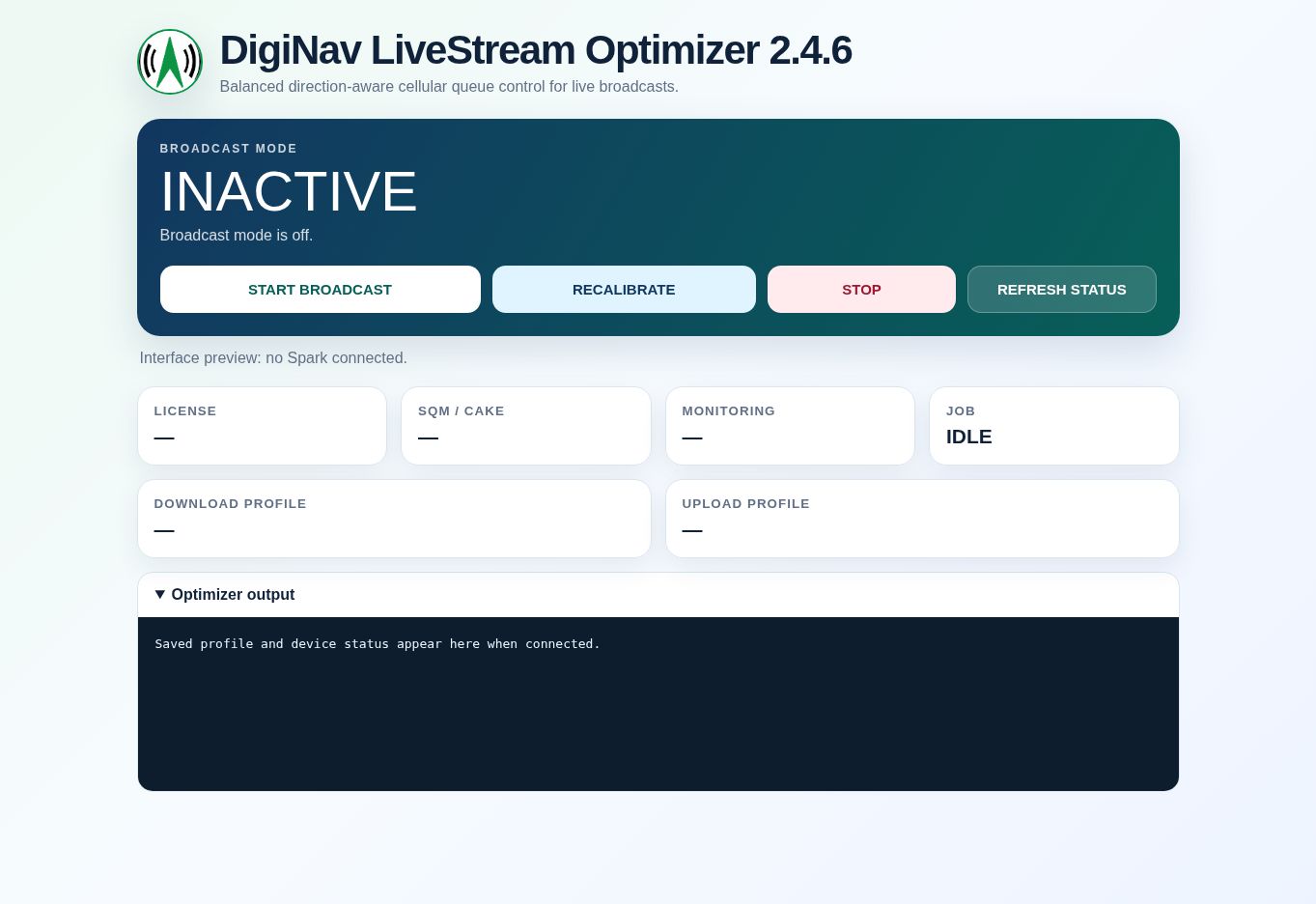
Start broadcast mode before live traffic, review the status, and stop it after the session. Recalibrate when conditions change enough that the saved profile is no longer a good match.
Start Broadcast
Apply the saved profile and start broadcast operation. The first start calibrates if no reusable profile exists.
Recalibrate
Run a fresh set of connection tests and save a new profile for current conditions.
Stop
End broadcast optimization and remove its queue shaping.
Refresh Status
Read the current broadcast, license, queue-control, and monitoring state.
The goal is better responsiveness under load. Queue control manages traffic within the connection’s available capacity; it does not create cellular coverage or guarantee a stream on every network. Calibration uses cellular data and can consume several hundred megabytes.
Ask about LiveStream Optimizer →04 / A useful field workflow
Find the position.
Check the link.
Prepare for live traffic.
Choose the location.
Compare practical case positions using radio quality, latency, and loss. Keep the strongest complete result.
Establish a baseline.
Check download, upload, and latency at the chosen location. Decide whether the link fits the work you plan to do.
Start broadcast mode.
Calibrate when needed, apply the profile, and confirm status before starting your live workload.
05 / Match the tool to the question
What do you need
to understand?
| Your question | Start with | What it helps you do |
|---|---|---|
| How is this connection performing? | Speedtest | Measure capacity and latency directly from the Spark. |
| Where should I put the case? | Signal Monitor | Compare positions using signal metrics, latency, and packet loss. |
| Why does delay rise when the link gets busy? | LiveStream Optimizer | Evaluate loaded latency and apply queue control where needed. |
06 / Add the tools to your deployment
Your Spark.
Your software setup.
Discuss software for a Spark you already own, or include it in a new DigiNav case configuration.
We’ll review the Spark model and firmware, the software you want to use, and the installation and activation required for your device. Signal Monitor and LiveStream Optimizer use separate device activations.
These products target compatible Katalyst Spark systems. Ask us to confirm your unit before arranging installation.
Tell us about the application.
- Your Spark model and firmware version.
- Whether the priority is placement, testing, or live traffic.
- The environment where the system will operate.
- Whether you need software for an existing unit or a new case build.
Ask us for a demonstration and the available installation and licensing options.
Get more useful information from your connection
Put Spark software
to work.
Let’s match the tools to your deployment—from selecting a position to preparing for your next live session.
(469) 389-0189